Create Bootable Windows USB Drives
Turn a standard Windows ISO into a USB installer that boots into Windows Setup, ready for a clean install, an upgrade or a system repair on a desktop or laptop.
WoeUSB creates bootable Windows USB drives on Linux from Windows ISO files. Prepare installation or recovery media with the command-line tool or WoeUSB-ng graphical interface. Free and open source, it supports popular Linux distributions and both UEFI and legacy BIOS systems.
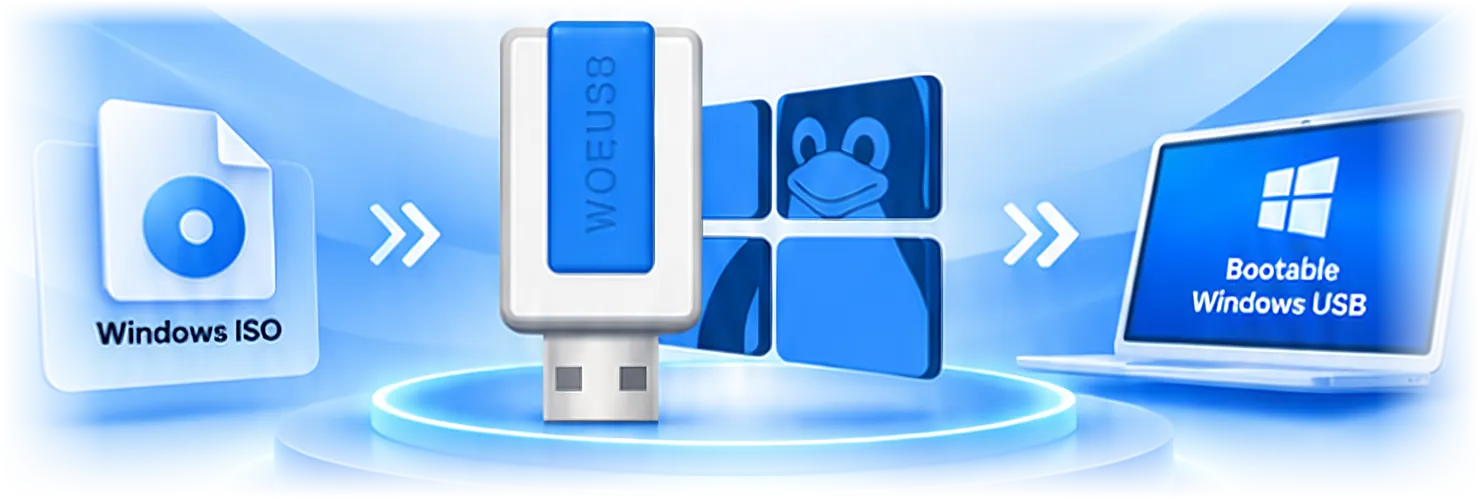
WoeUSB is a lightweight Linux utility that creates a bootable Windows USB drive from a Windows ISO image or an installation DVD. Instead of writing the ISO byte for byte, it formats the USB stick, copies the Windows setup files and installs a bootloader, so the drive behaves like official installation media.
It is made for Linux users who need to install or reinstall Windows: dual-boot users, IT technicians, system administrators and anyone repairing a PC without access to a Windows machine.
The original WoeUSB is a Bash script for the terminal. WoeUSB-ng is a separate Python rewrite that adds a simple graphical window while keeping a command-line mode. For Linux users the benefit is clear: no virtual machine and no borrowed Windows computer — just your distribution and a USB drive.
A focused, reliable tool for creating Windows USB installers on Linux.
Turn a standard Windows ISO into a USB installer that boots into Windows Setup, ready for a clean install, an upgrade or a system repair on a desktop or laptop.
WoeUSB is released under the GNU GPL v3 license. You can use it at no cost, read every line of its source code and adapt it to your own needs.
Point WoeUSB at a Windows ISO image or a mounted installation DVD. It works with modern Windows media such as Windows 10 and Windows 11 and can split oversized install.wim files.
The original WoeUSB script runs in the terminal for full control, while WoeUSB-ng adds a simple point-and-click window for users who prefer not to type commands.
Drives can boot on traditional BIOS computers through GRUB and on UEFI firmware. FAT32 gives the widest UEFI compatibility, and NTFS is available for very large files.
WoeUSB relies on standard Linux tools such as parted, wimlib and GRUB, so it fits naturally into Ubuntu, Debian, Fedora, Arch Linux and their derivatives.
WoeUSB does not simply copy an image file. It rebuilds Windows installation media on your USB drive in four clear stages.
WoeUSB mounts the ISO image, or reads a mounted DVD, as a read-only source. It checks that Windows setup files are present and measures how much space they need.
The selected device is unmounted, wiped and given a fresh partition table. WoeUSB then creates a FAT32 or NTFS partition, depending on the file system you choose.
All setup files are copied from the source to the new partition. If install.wim exceeds the 4 GB FAT32 file limit, WoeUSB can split it with wimlib.
Finally, WoeUSB installs GRUB for legacy BIOS booting and keeps the UEFI boot files in place, adding a UEFI:NTFS helper for NTFS drives, so compatible PCs can start Windows Setup.
Get the WoeUSB source archive and create bootable Windows USB drives on Linux.
ZIP archive · Free · Open source
WoeUSB comes as a complete source archive from the project's master branch, packaged as a single ZIP file. It includes the woeusb command-line script, documentation and license files. Because WoeUSB is a Bash script, it runs right after extraction — no compiling or build step is needed.
Two editions exist. The original WoeUSB is a lightweight Bash script for the terminal, while WoeUSB-ng is a Python edition with a graphical interface that is installed with pip. Both create the same bootable Windows USB drives from Windows ISO files.
lsblk before you start.| Software | WoeUSB |
|---|---|
| Category | Bootable Windows USB creator |
| Platform | Linux |
| Package | ZIP source archive (master branch) |
| Interface | Command line (GUI available via WoeUSB-ng) |
| License | GNU GPL v3 — free and open source |
| Price | Free |
| Requirements | sudo access, wimlib, parted, dosfstools, ntfs-3g, GRUB |
Because WoeUSB is a script, installing it mostly means adding a few system tools and placing the script in your PATH. Pick your distribution below.
Install the required tools from the official repositories, extract the downloaded archive and copy the script into your PATH.
sudo apt update
sudo apt install wimtools parted dosfstools ntfs-3g grub-pc-bin unzip
unzip WoeUSB-master.zip
sudo install -m 755 WoeUSB-master/sbin/woeusb /usr/local/bin/woeusbDebian uses the same package names as Ubuntu. Run the commands as a user with sudo rights, then install the script the same way.
sudo apt install wimtools parted dosfstools ntfs-3g grub-pc-bin unzipOn Fedora, the wimlib tools and the GRUB BIOS modules use slightly different package names.
sudo dnf install wimlib-utils parted dosfstools ntfs-3g grub2-tools grub2-pc-modules unzipInstall the dependencies with pacman. Community packages for WoeUSB and WoeUSB-ng are also available in the AUR.
sudo pacman -S --needed wimlib parted dosfstools ntfs-3g grub unzipWoeUSB-ng is installed from PyPI with pip. Add its system dependencies first (Ubuntu and Debian example shown); it provides the woeusbgui and woeusb commands.
sudo apt install git p7zip-full python3-pip python3-wxgtk4.0 grub2-common grub-pc-bin parted dosfstools ntfs-3g
sudo pip3 install WoeUSB-ng
On newer distributions, pip may refuse system-wide installs with an “externally-managed-environment” message. In that case, use pipx, a distribution or AUR package, or the original WoeUSB script. Full details are in our installation guide.
Follow these seven steps to go from a Windows ISO file to a working USB installer.
Get the official Windows 10 or Windows 11 ISO from Microsoft and save it somewhere easy to find, such as your Downloads folder.
Plug in a USB drive of at least 8 GB. Run lsblk to find its device name, for example /dev/sdb — not a partition like /dev/sdb1.
Open a terminal for the command-line version, or start the WoeUSB-ng window with woeusbgui. Both need administrator rights.
In the terminal, pass the ISO path after --device. In WoeUSB-ng, choose the disk image option and browse to your ISO.
Add the device path, such as /dev/sdb, or pick the stick from the target list. FAT32 is the default; NTFS is optional.
Run the command or click Install. WoeUSB partitions the drive, copies files and installs boot code. Do not unplug the drive until it finishes.
Restart the target PC, open its boot menu (often F12, F10, F8 or Esc), select the USB drive and Windows Setup will start.
# find your USB device
$ lsblk
# create the Windows USB (FAT32)
$ sudo woeusb --device \
  Win11.iso /dev/sdX
# optional: NTFS target
$ sudo woeusb --target-filesystem \
NTFS --device Win11.iso /dev/sdXThe original WoeUSB started as a Linux Bash script and, in recent versions, focuses on a dependable command-line tool. It is distributed as source code and runs directly from the terminal with only standard system utilities.
WoeUSB-ng ("next generation") is a rewrite in Python. It keeps the command-line workflow and adds a graphical interface built with wxPython, which feels friendlier on the desktop. Both editions produce the same kind of bootable Windows USB drive.
you work in a terminal, want minimal dependencies or plan to script the process.
you prefer a graphical window and are happy installing a Python package.
| Feature | WoeUSB | WoeUSB-ng |
|---|---|---|
| Language | Bash script | Python |
| Interface | Command line | Graphical window + command line |
| Installation | Download source, add dependencies | sudo pip3 install WoeUSB-ng |
| Commands | woeusb | woeusbgui, woeusb |
| Best for | Terminal users and scripts | Desktop users who want a GUI |
WoeUSB has modest needs. Any recent Linux computer can run it as long as the following conditions are met.
Any modern distribution with Bash and the required tools, including Ubuntu, Debian, Linux Mint, Fedora, openSUSE and Arch Linux.
A USB flash drive of at least 8 GB is recommended for current Windows 10 and Windows 11 ISOs. All data on it will be erased.
An unmodified Windows installation ISO image or DVD. Corrupted or incomplete downloads are a common cause of failure.
Root access through sudo, because WoeUSB must partition, format and mount the USB device.
Most WoeUSB issues come from a missing tool, the wrong device name or a boot setting on the target PC. These practical fixes solve the most frequent ones.
FixRe-plug the drive and run lsblk to confirm its name. Use the whole device (/dev/sdb), not a partition, and unmount it before starting.
FixMost failures come from missing dependencies. Install wimlib, parted, dosfstools, ntfs-3g and GRUB; for WoeUSB-ng, also check pip and wxPython.
FixWoeUSB must run as root. Prefix the command with sudo and make the script executable with chmod +x.
FixCheck the boot menu and boot order, try another port and disable Secure Boot if you used NTFS. Recreating the drive with FAT32 often helps.
FixDownload the ISO again and verify its checksum. Modified, partial or non-Windows ISOs are not supported.
FixCopying large files to slow USB 2.0 sticks takes time. Wait, avoid unplugging, and try a faster drive or port if progress stops completely.
WoeUSB is not the only USB creator on Linux. These tools are popular, but each has a different focus and its own limitations.
Installs once, then boots any ISO you copy to the drive, so one stick can hold several images. Some systems with Secure Boot need an extra enrolment step.
A simple cross-platform image writer with a clean interface. It is great for Linux images, but Windows ISOs written with it often do not boot.
A long-standing tool for creating live USB drives, mainly for Linux distributions. Windows installation ISOs are not its focus.
The official tool for writing Fedora images. Easy to use, but designed around Fedora media rather than Windows installers.

WoeUSB solves one specific problem very well: making Windows installation media without leaving Linux. Its practical advantages include:
Answers to common questions about using WoeUSB on Linux.